
How to pay for a publication: QR and Visa
To pay for a job or event on DevKG, start with the Order summary. Check the total, select Pay and publish, then complete the payment on the payment provider's page. This guide covers paying through Finik. Publishing articles is free.
Step 1. Review your order
At the last stage of publishing, find Order summary. It lists the publication and any paid options you have selected. Turn off the options you do not need and check Total.
To use your points, turn on Spend points. The total will update. The share you can pay with points depends on the site rules, which you can find on the Points page.
For companies: if your company already has a balance from a purchased bundle, you can enable Pay from balance in the order summary. Pay any remaining amount using a regular payment method. Buying a bundle is optional. See Publication bundles and company balance.
Need company documents? If I need documents appears below the total, select it and check the chosen company. If billing details are missing, the site will ask you to fill them in before payment. If you cannot edit those details, ask a company editor to add them.
Read the payment and refund terms near the button, then select Pay and publish. On the Finik page that opens, check the recipient and payment amount.
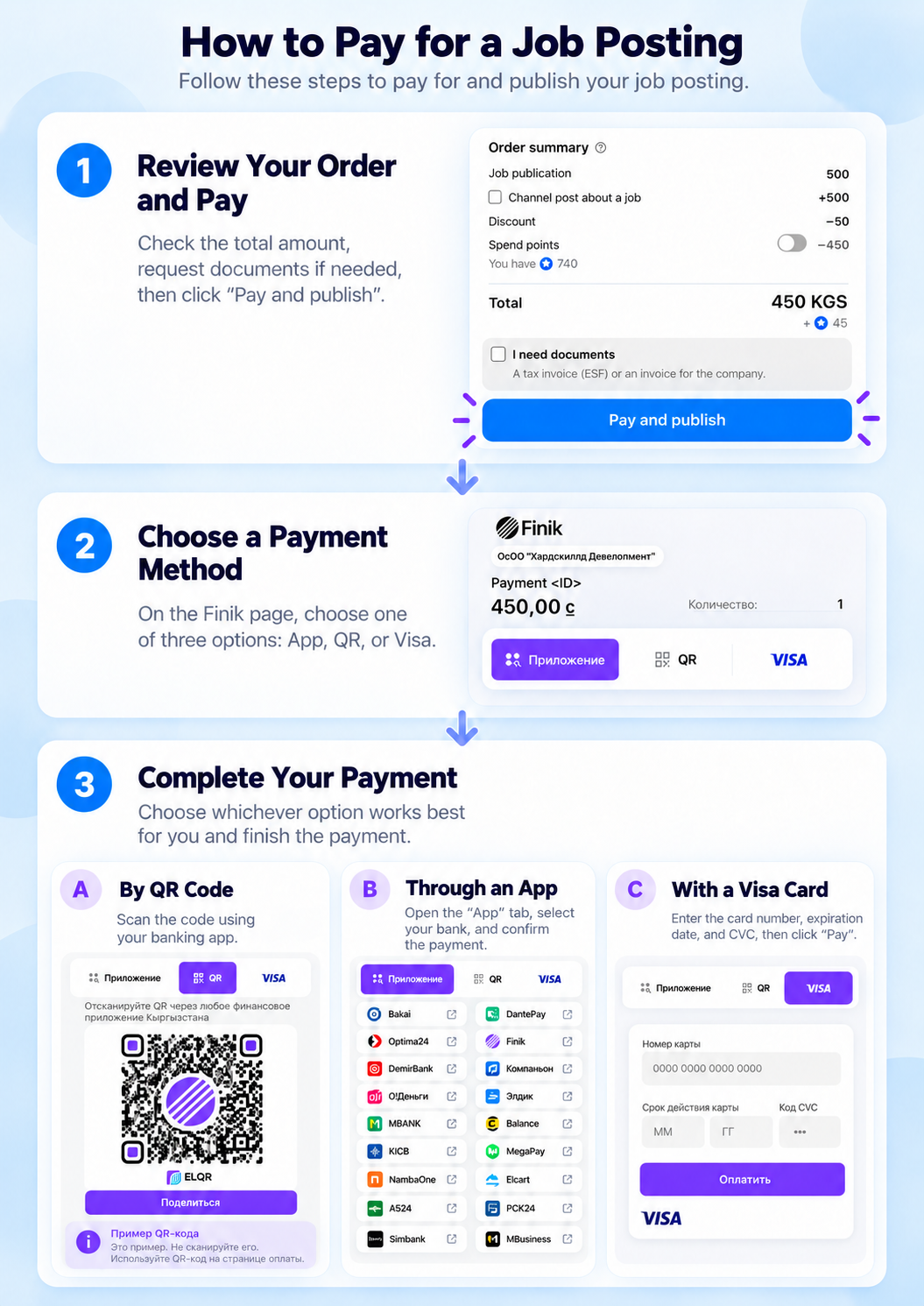
The illustration shows an example order. Your amount and available options may differ. Use the QR code on your own payment page, not the one in this guide.
Step 2. Choose a payment method
The Finik page has App, QR and VISA tabs. Choose from the methods shown for your payment. If the page is in Russian, the App tab is labelled «Приложение».
Pay by QR code
This works well when the payment page is open on a computer and your banking app is on your phone.
- Open the QR tab on Finik.
- In your banking app, open the QR payment scanner.
- Scan the code on your computer screen.
- Check the recipient and amount in the app, then confirm payment.
If you are using one phone, try the App tab. You can also save the QR image and load it from your gallery if your banking app supports this.
Pay through a banking app
- Open the App tab on Finik.
- Select your bank or wallet from the list.
- If the app opens with the payment details, check them and confirm payment.
If the app does not open or your bank is not listed, try QR or another method shown on the payment page.
Pay with Visa
- Open the VISA tab.
- Enter your card number, expiry date and CVC in the payment form.
- Select Pay.
- If your bank asks for confirmation, follow its instructions in the app or enter the code on the bank's page.
The VISA form is for Visa cards. Whether a particular card can be used also depends on its issuing bank. If payment is declined, check your online payment settings and limits, or choose another available method.
Step 3. Check the result on the site
After paying, return to DevKG. Payment in progress means the site is still waiting for confirmation. The status may take a few minutes to update.
Once payment is confirmed, you will see Paid. The page will also show whether your publication is live or has been sent for moderation. Paying does not remove the content review requirement.
Find your payment and documents
Open Billing in your account settings to check your payment history and download available documents. If a document is still being prepared, check its status later.
Enter company billing details before paying if you need company documents. If you notice an error in a document already issued, contact support with the payment number.
If something goes wrong
| What happened | What to do |
|---|---|
| You closed Finik before paying | Return to the publication checkout. If the site shows an unfinished payment, select Go to payment. |
| You were charged but the status has not changed | Do not pay again. Select Check again. If confirmation is still missing, send support the payment number, amount, payment time and bank receipt. |
| The QR code will not scan | Display it at a readable size and use your banking app's scanner. If Finik says the code is no longer valid, return to your order and follow the site's instructions. |
| The banking app will not open | Return to Finik and try QR or another available method. |
| The card was declined | Check the card details, balance, limits and online payment settings. Ask your bank for the reason if needed. |
| The Finik page will not load | Try reopening the link from the unfinished payment. If the problem continues, contact site support or Finik. |
The site does not offer a cancel button for Finik payments. If a payment is stuck, contact support. Do not start a second payment until you know the result of the first.
See also payment troubleshooting and refunds.
Was this article helpful?
Can't find an answer? Contact support
- How much publishing costsEach site sets its own prices — where to find them and what an order includes
- What to do if a payment failsCheck a pending payment, change the payment method and get help if money was taken
- How to request a publication refundWhen to request a refund, how to find your payment, what to send support and how long it takes
- How to contact support and find the replyCreate a request, describe the problem and keep the conversation in one place. Choose a category and handle closed requests