
How to use a promo code
Where to enter a code depends on its type:
- New member code — only works when you first join DevKG. You cannot add it afterward.
- Points code — if you are already a member, enter it on the Points page.
- Discount code — does not add points. There is currently no field for it in the publication form. Contact the code provider or support about using it.
Promo code when you join
Step 1. Sign in
Select Sign in. If you use email, enter your address and the verification code from your inbox. That code signs you in; you will enter your promo code on the next screen.
When you first join, a page with the site name and a Join button will appear. Check that you are using the right account.
Step 2. Enter your promo code
Find Promo code — optional and paste your code. Uppercase and lowercase Latin letters both work. If you type the code, check similar characters such as the letter O and the number 0.
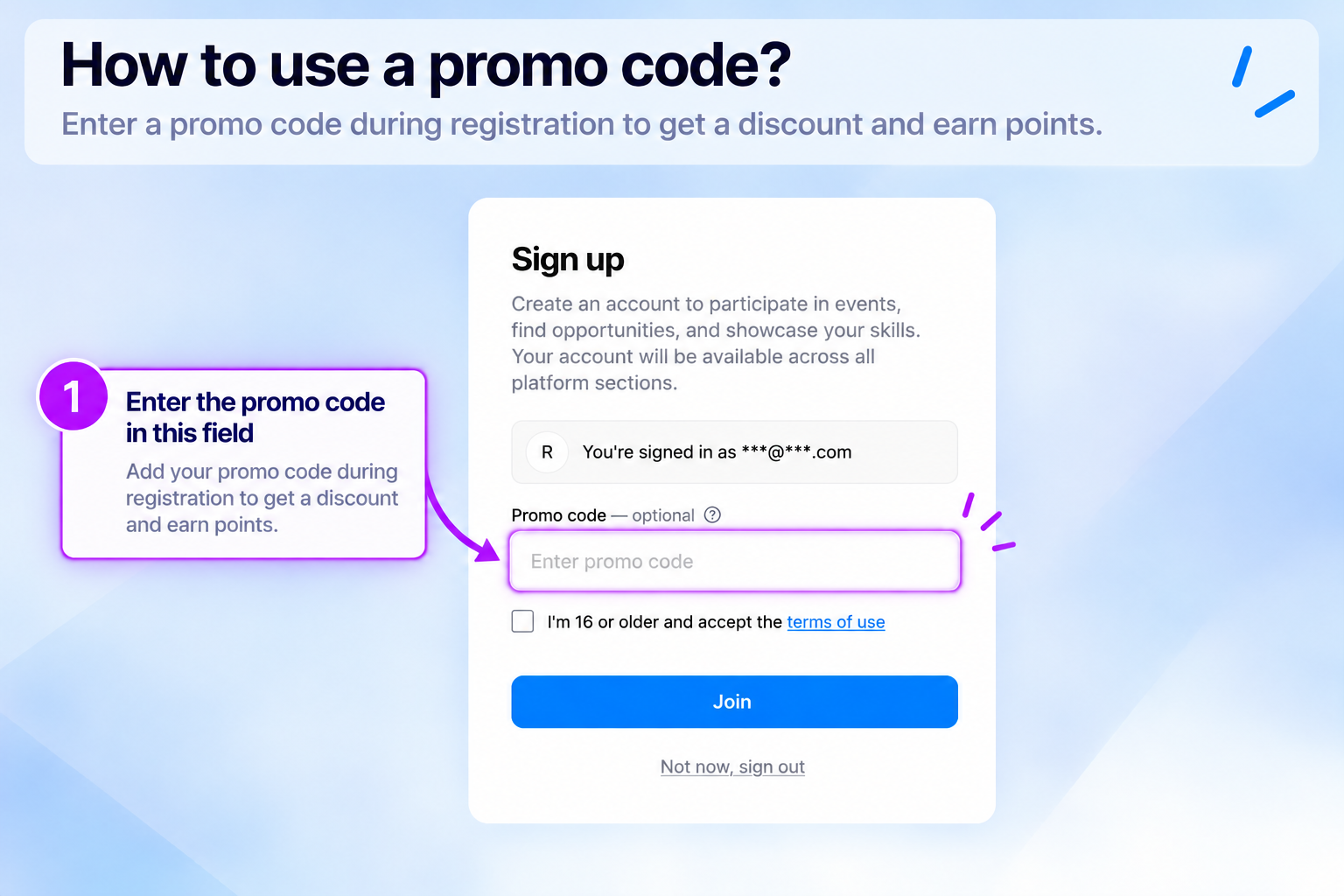
You can leave this field empty. However, a new member code cannot be added after you join.
Step 3. Finish joining
Read the terms and select the consent checkbox if the form asks you to. Select Join.
If the code is rejected, an error will appear below the field, and your code will stay in it. Correct the code and select Join again. You can also clear the field and join without a code, but then you lose the new member code bonus.
Then open Points and check your balance and transaction history for the promo code credit.
Promo code after joining
Step 1. Open Points
Sign in to the account that should receive the points and open the Points page. On a computer, you can also use the points icon at the top of the site.
If support sent you a personal code, use the account it was issued to.
Step 2. Enter the code
On the Points page, select I have a promo code below the points rules. A field will open. Enter your code and select Apply.
Letter case does not matter. If you type the code, use Latin letters and check similar characters such as O and 0, or I and 1.
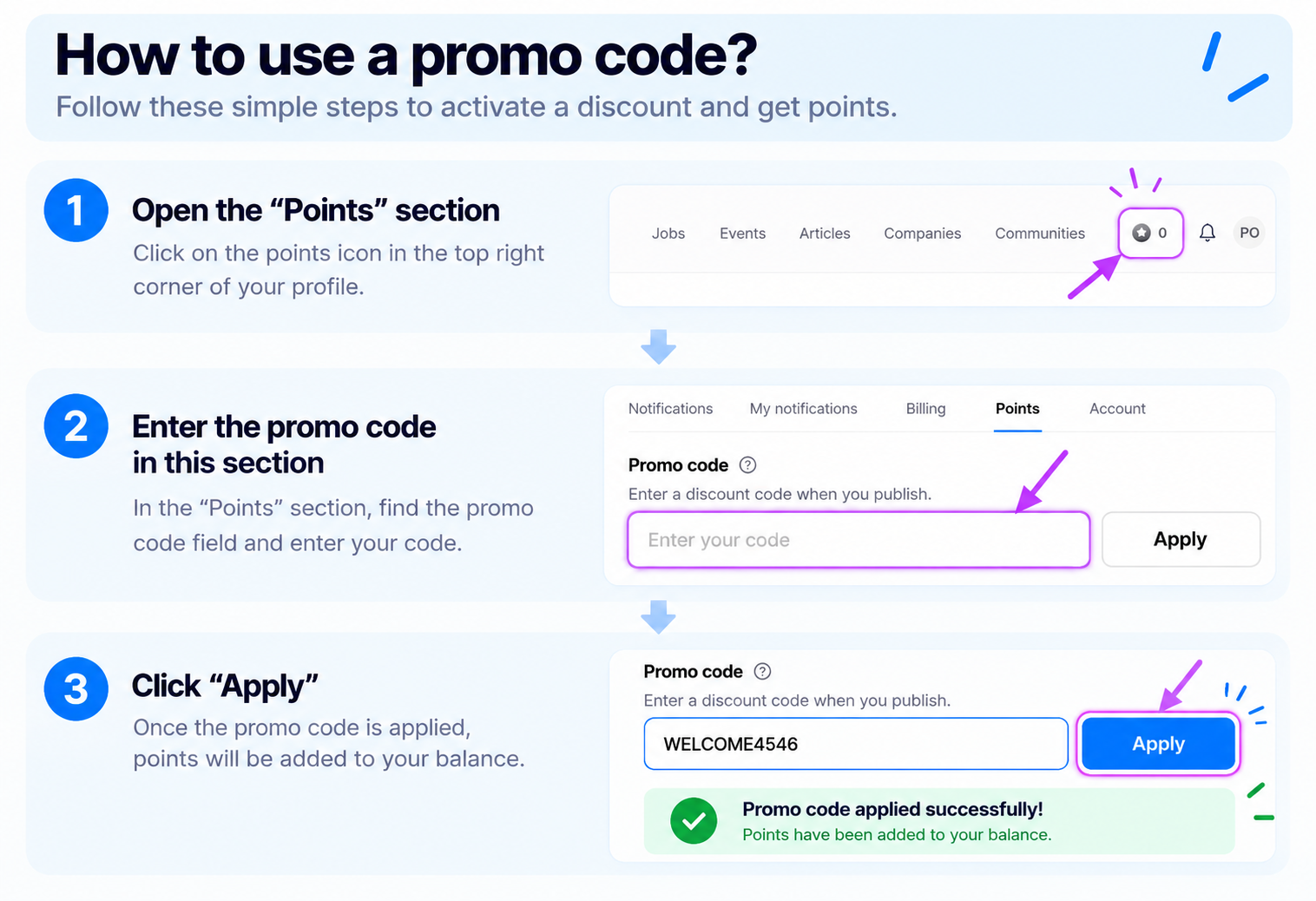
If I have a promo code is missing, applying codes may be unavailable on this site. Contact support to check.
Step 3. Check your points
When the code is accepted, a confirmation shows how many points were added and your balance updates. You can also find the credit in the history on this page.
If the points are missing
Refresh the Points page and check the history. The number of points depends on the offer. If the credit is missing, contact support with your promo code, the time you tried it and the error text or a screenshot.
If the code does not work
| Message | What to do |
|---|---|
| “This code is not valid.” | Check the spelling, site and account. A personal code only works for its recipient. |
| “This code has already been used.” | Check your history: the points may already be there. The code or promotion may also have reached its overall usage limit. Submitting it again will not reset that limit. |
| “This code is not active right now.” | Check the dates in the offer conditions. It may not have started yet, or it may have ended. |
| “This code is only for new members…” | It must be entered when you first join. It cannot be added to an existing membership. |
| “This is a discount code — enter it when you publish.” | This is a different type of code, and it does not add points. There is currently no field for it in the publication form. Contact the code provider or support. |
Spending your points
When paying for a publication, turn on Spend points in the payment section. Check the final amount before confirming.
The rules on the Points page show the maximum share points can cover. If full payment is allowed and you have enough points, there is nothing left to pay. Otherwise, pay the remaining amount using an available payment method.
Find current offers on the Promotions page. For payment and transaction details, see How points work.
Was this article helpful?
Can't find an answer? Contact support
- How to spend points and earn rewards for inviting friendsFind your balance, use points, understand referral rewards and see what happens after a refund
- How to sign in to DevKG and find your email codeSign in with an email code, Google or Telegram. Learn how to join the site, request another code and sign out
- How to contact support and find the replyCreate a request, describe the problem and keep the conversation in one place. Choose a category and handle closed requests